
Are you looking to boost your online privacy without installing extra software? Windows offers a built-in VPN client that might be just what you need.
While it doesn’t provide a full VPN service on its own, it allows you to connect securely by entering details from your chosen VPN provider. Plus, Microsoft’s Edge browser includes a simple VPN feature to protect your browsing on public Wi-Fi.
If you want to understand how these tools work and how to set them up easily, keep reading—this guide will walk you through everything step by step, helping you take control of your internet security right from your Windows device.
Credit: www.youtube.com
Windows Vpn Client Features
The Windows built-in VPN client offers a simple way to connect securely to VPN servers. It does not include VPN servers or encryption services by itself. Instead, users must enter details from third-party VPN providers to use it effectively. This client works system-wide, protecting all internet traffic once connected.
Windows provides basic tools to set up and manage VPN connections. These tools fit well for users who want control over their VPN settings without installing extra software. The client supports common authentication methods and allows manual setup. It also integrates smoothly into the Windows network settings.
Manual Setup Requirements
Setting up the Windows VPN client requires specific information from your VPN provider. You need the server address, VPN type, and sign-in credentials. Some providers also require additional settings like a pre-shared key. Without these details, the manual setup will not work.
Prepare your username and password carefully. Make sure to verify the VPN type supported by your provider. Common types include PPTP, L2TP/IPsec, SSTP, and IKEv2. Having all required information ready makes the setup process smoother.
Locating The Vpn Settings
Finding the VPN settings in Windows is straightforward. Open the Settings app and go to Network & internet. Then select VPN. Here you can add a new VPN connection or manage existing ones.
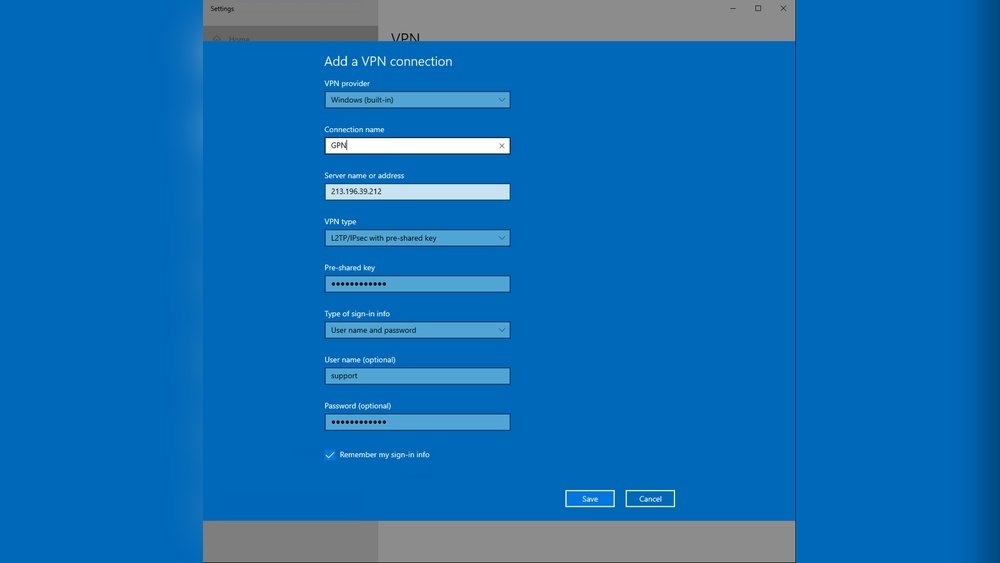
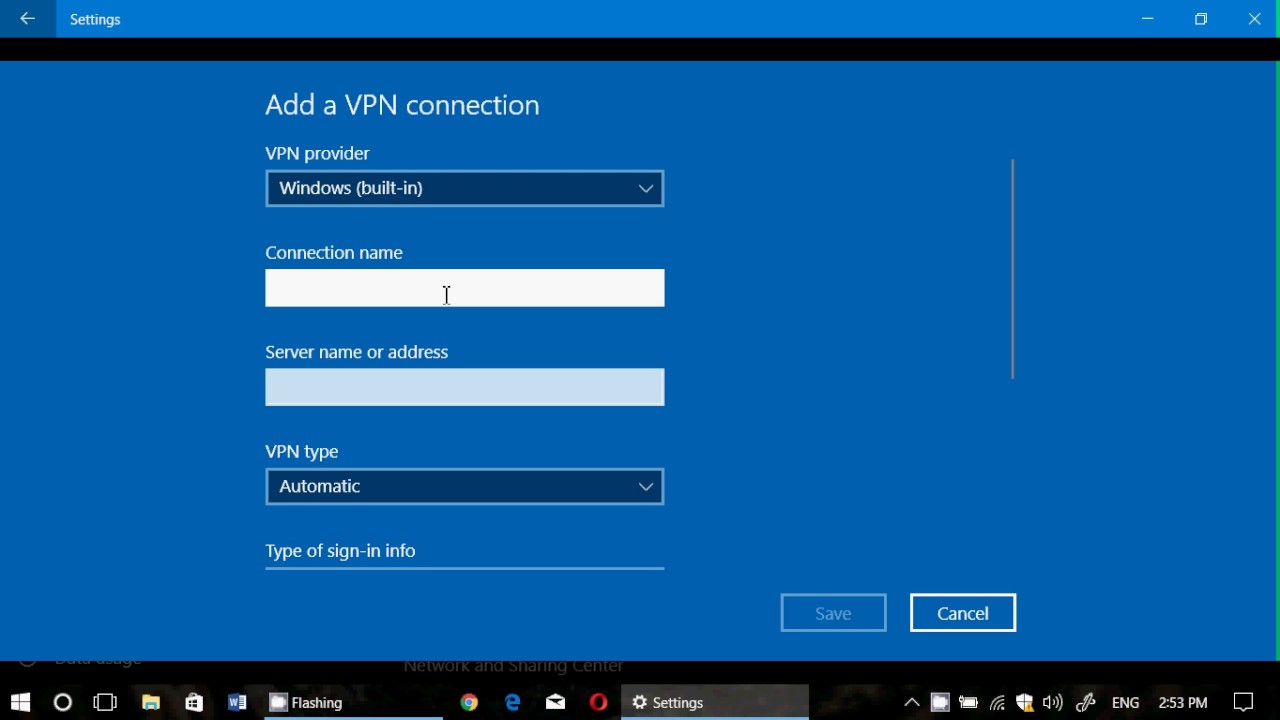
Click the Add VPN button to start setting up a connection. From the provider dropdown, choose Windows (built-in). This option activates the native client for manual configuration. You can then enter all necessary details to connect.
Supported Authentication Methods
The Windows VPN client supports multiple authentication methods. These include username and password, smart cards, and certificates. It also supports pre-shared keys for L2TP/IPsec connections.
This range of methods ensures compatibility with many VPN providers. Some enterprises prefer certificate-based authentication for added security. Others use simple credentials to allow quick access. The built-in client adapts to these needs easily.
Edge Secure Network
Microsoft Edge includes a feature called Edge Secure Network. It offers simple VPN-like protection inside the browser. This helps keep your browsing data safe, especially on public Wi-Fi. Unlike full VPNs, it only protects traffic within the Edge browser. It is easy to turn on and requires no additional software. Edge Secure Network is useful for quick privacy boosts during web use.
Browser-level Encryption
Edge Secure Network encrypts your browsing traffic inside Edge. This means data sent and received by the browser is hidden from others. It creates a secure tunnel between your device and the internet. Encryption prevents hackers and snoopers from reading your information. This is especially important on public or unsecured networks. The encryption only applies to Edge, not to other apps or browsers. It helps keep passwords and browsing history private.
Use Cases And Limitations
Edge Secure Network suits users needing basic browser privacy. It works well on public Wi-Fi to prevent data theft. It is also helpful for hiding your IP address during casual browsing. This feature is built into Edge and easy to activate. Limitations include no protection outside the browser. It does not secure other apps or system-wide traffic. The service has data limits and fewer server locations than full VPNs. For stronger privacy, a full VPN is still necessary.
Setting Up Windows Vpn
Setting up a VPN on Windows helps secure your internet connection. Windows offers a built-in VPN client that works with third-party VPN services. You must add the VPN details manually to use it. The process is simple and can be done in a few steps.
Accessing Vpn Settings
Open the Start menu and select Settings. Click on Network & internet. Find and select the VPN option in the sidebar. This opens the VPN settings where you manage connections.
Adding A Vpn Connection
In the VPN settings, click the Add VPN button. A new window appears to create a VPN profile. Choose Windows (built-in) as the VPN provider from the dropdown menu.
Entering Server Details
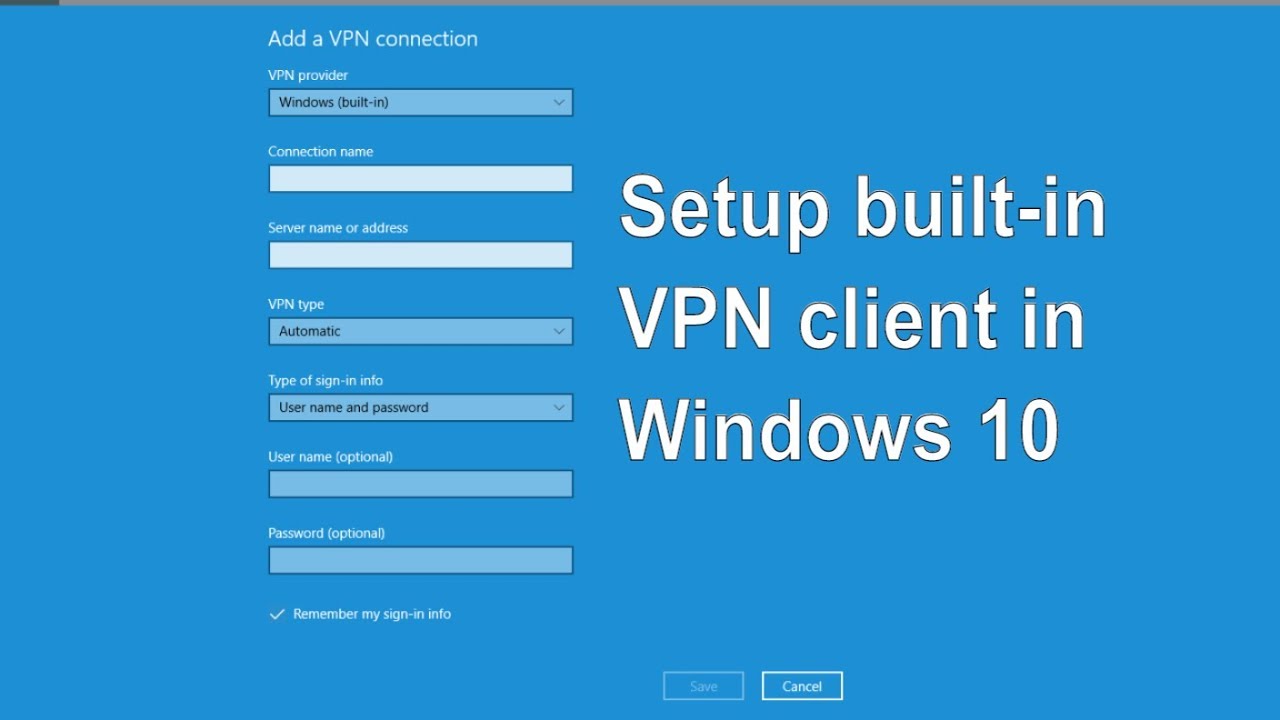
Fill in the connection name for easy identification. Enter the server address given by your VPN provider. Choose the VPN type and sign-in info based on your provider’s instructions.
Saving And Connecting
Click Save to store your VPN profile. To connect, select the VPN from the list and click Connect. Your internet traffic now routes through the secure VPN server.

Credit: www.servers.com
Comparing Built-in Vpn And Third-party Apps
Choosing between Windows built-in VPN and third-party apps depends on your needs and skill level. Windows offers a native VPN client that allows manual connections to VPN servers. Third-party apps provide ready-made services with extra features. Comparing these options helps you decide which suits your privacy and security goals best.
When To Choose Built-in
Use the built-in VPN client if you want simple, system-wide VPN access. It works well with VPN service subscriptions. You enter server details manually, which requires some technical knowledge. This option avoids installing extra software. It fits users who prefer minimal apps and basic VPN needs.
Advantages Of Third-party Solutions
Third-party VPN apps offer easy setup and many server choices. They include automatic connection options and kill switches. These apps often have better user interfaces. Some offer extra tools like ad blocking or malware protection. Regular updates improve security and add new features.
Security And Performance Considerations
Security depends on the VPN service, not just the app. Built-in VPN relies on your chosen provider’s encryption and policies. Third-party apps may offer stronger encryption and leak protection. Performance varies by server quality and app optimization. Test speeds and reliability before committing to one option.
Troubleshooting Common Issues
Troubleshooting common issues with Windows built-in VPN helps maintain a smooth connection. Many users face simple problems that prevent VPN from working properly. Fixing these problems often requires just a few quick steps. This section guides you through common issues and how to resolve them easily.
Connection Failures
Connection failures occur when Windows cannot reach the VPN server. Check your internet connection first. Restart your router and try connecting again. Verify the VPN server address is correct in settings. Disable any firewall or antivirus temporarily, as they may block VPN connections. Use the built-in troubleshooter in Windows by going to Settings > Network & Internet > VPN and clicking on “Troubleshoot.”
Authentication Errors
Authentication errors happen when login details are wrong or outdated. Confirm your username and password with your VPN provider. Reset your password if needed. Make sure you select the right VPN type (PPTP, L2TP, SSTP, or IKEv2) in the Windows VPN settings. Clear saved credentials in the Credential Manager to avoid conflicts. If multi-factor authentication is active, follow all required steps to complete login.
Network Conflicts
Network conflicts arise from IP address or DNS issues. Change the VPN connection’s DNS server to a public option like Google DNS (8.8.8.8). Avoid using VPNs on networks with strict rules or captive portals, such as public Wi-Fi hotspots. Disable other active VPNs or proxies that may interfere. Restart your device to reset network settings. Check for driver updates on your network adapter to improve compatibility.
Auto-trigger Vpn Profiles
Windows built-in VPN offers an advanced feature called Auto-Trigger VPN Profiles. This feature connects your device to a VPN automatically based on rules you set. It ensures your connection stays secure without manual effort. Auto-trigger profiles activate VPN connections when you join specific networks or open certain apps. This helps maintain privacy and data protection seamlessly.
Configuring Auto-connect
To set up auto-connect, start in the Windows VPN settings. Open Settings > Network & internet > VPN. Select your VPN profile or create a new one. Find the option for auto-trigger or auto-connect. Add rules like trusted Wi-Fi networks or apps that require VPN. Save changes to enable automatic VPN connection. This setup avoids forgetting to connect manually.
Use Cases For Auto-trigger
Auto-trigger VPN is useful in many situations. It connects VPN automatically on public Wi-Fi networks. This protects your data from hackers on unsafe networks. It also activates VPN when launching work apps. This ensures secure access to company resources. Travelers benefit by always connecting to VPN in different locations. Overall, auto-trigger keeps your online activity safe without extra steps.
Privacy And Security Tips
Using Windows built-in VPN can improve your online privacy and security. To get the best protection, follow these simple tips. They help you stay safe and keep your data private.
Choosing Reliable Servers
Pick VPN servers from trusted providers only. Reliable servers prevent leaks and block hackers. Avoid free or unknown servers that may track your activity. Choose servers near your location for better speed and security. Always check the server’s reputation before connecting.
Maintaining Anonymity
Use strong passwords and avoid sharing personal info online. Turn off location services while using the VPN. Clear your browser history and cookies regularly. Use private browsing mode to reduce tracking. These steps help keep your identity hidden and protect your privacy.
Protecting Data On Public Wi-fi
Public Wi-Fi networks are risky for your data. Always connect to a VPN before using public Wi-Fi. The VPN encrypts your data and stops hackers from stealing it. Avoid accessing sensitive accounts on public networks without a VPN. This simple habit keeps your information safe and secure.
Credit: www.youtube.com
Frequently Asked Questions
Does Windows Come With A Built-in Vpn?
Windows includes a built-in VPN client for manual setup but lacks its own VPN service. Users must enter third-party VPN details. Microsoft Edge offers a separate, browser-based VPN called Edge Secure Network for basic online privacy.
Is The Windows Built-in Vpn Any Good?
Windows’ built-in VPN client requires manual setup with third-party servers. It lacks its own service or strong encryption by default. For simple browser privacy, use Microsoft Edge’s limited Secure Network feature. Overall, it offers basic functionality but depends on external VPN providers for full protection.
How To Turn On Inbuilt Vpn?
Open Settings, go to Network & internet > VPN, click “Add VPN,” choose “Windows (built-in)” as provider, then enter your VPN details and connect.
Does Windows Have An Automatic Vpn?
Windows includes a built-in VPN client for manual connections but lacks an automatic, system-wide VPN service. Use third-party VPNs with Windows settings. Microsoft Edge offers Edge Secure Network, a browser-based VPN for basic online privacy.
Conclusion
Windows’ built-in VPN client offers a simple way to connect securely. You need to add server details from a VPN provider to use it. For basic protection, Microsoft Edge’s Secure Network encrypts browser traffic on public Wi-Fi. Both options help protect your online privacy in different ways.
Choose the one that fits your needs best. Stay safe while browsing or working online with these easy tools.