Is your Proton VPN suddenly not working when you need it most? That frustrating pause, the endless connecting wheel, or the outright failure to secure your connection can leave you feeling stuck and exposed online.
You rely on Proton VPN for privacy and safety, so when it stops working, it’s more than just an inconvenience—it’s a problem that demands a quick fix. You’ll discover simple, effective solutions to get Proton VPN back up and running fast.
Whether it’s a glitch, a settings issue, or something else blocking your connection, we’ll guide you step-by-step to regain full control of your online security. Keep reading to unlock the answers and protect your digital world again.

Credit: protonvpn.com
Common Connection Issues
Common connection issues often cause Proton VPN not to work properly. These problems can stop the VPN from connecting or slow down your internet speed. Knowing these issues helps you fix them quickly and get back online safely. Here are some frequent reasons why Proton VPN may face connection problems.
Outdated Software
Using old VPN software can cause connection failures. Updates fix bugs and improve security. Always keep Proton VPN and your device updated to the latest version. This ensures better performance and fewer errors during connection.
Firewall And Antivirus Blocks
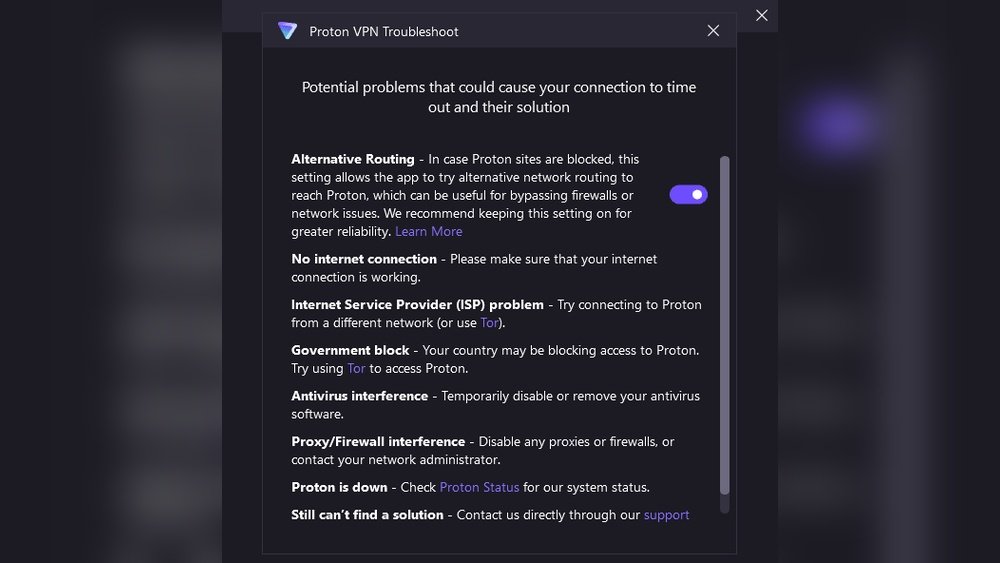
Firewalls and antivirus programs sometimes block VPN traffic. They may see Proton VPN as a threat and stop it from working. Check your security settings and add Proton VPN to the allowed list. This lets the VPN connect without interference.
Server Overload Or Downtime
Sometimes, Proton VPN servers get crowded or go offline for maintenance. This causes slow connections or no connection at all. Try switching to a different server location to fix this. Choosing less busy servers improves your VPN speed and reliability.
Internet Connectivity Problems
Poor internet connection affects VPN performance directly. If your base internet is slow or unstable, Proton VPN may fail to connect. Test your internet speed and reset your modem or router if needed. A stable connection helps the VPN work smoothly.
Incorrect Credentials
Wrong username or password stops Proton VPN from logging in. Double-check your login details before connecting. Reset your password if you forget it. Correct credentials are essential for successful VPN access.

Credit: www.reddit.com
Quick Fixes
Proton VPN may sometimes stop working due to common issues. Quick fixes often solve these problems fast. These easy steps help restore your VPN connection without hassle. Try these simple solutions before seeking advanced support.
Restart App And Devices
Close the Proton VPN app fully. Restart your smartphone or computer next. Power cycle your modem or router by unplugging it. Wait 30 seconds, then plug it back in. This refreshes network settings and clears temporary glitches. Restarting often restores the VPN connection quickly.
Switch Vpn Servers
Some Proton VPN servers may be overloaded or offline. Open the app and pick a different server location. Choose one closer to your actual location for better speed. Changing servers can bypass server issues and improve connection stability. Try a few servers to find the most reliable one.
Check Internet Stability
VPN requires a steady internet connection to work. Test your internet by opening websites without VPN. Restart your router if the internet is slow or disconnects. Move closer to your Wi-Fi router for a stronger signal. A stable internet line ensures Proton VPN works smoothly.
Update Vpn And Os
Old versions of Proton VPN or your device’s system cause errors. Check for updates in the VPN app settings. Also, update your phone or computer operating system. Updates fix bugs and improve compatibility with VPN servers. Keeping software current reduces connection problems.
Software And Settings Conflicts
Software and settings conflicts often cause Proton VPN not to work correctly. These conflicts happen when other programs or system settings block or interfere with the VPN connection. Such issues stop Proton VPN from connecting or cause frequent disconnections. Troubleshooting these conflicts can restore your VPN’s proper function.
Adjust Firewall And Antivirus Settings
Firewalls and antivirus programs protect your device but can block Proton VPN. These security tools may see VPN traffic as suspicious. You should add Proton VPN to the exception list in your firewall or antivirus settings. This step allows the VPN to send and receive data freely. Without this, Proton VPN might fail to connect or disconnect often.
Disable Other Vpns Or Security Apps
Running multiple VPNs or security applications can cause conflicts. These programs compete for network control and block each other. Turn off any other VPN or security apps before using Proton VPN. This action prevents software clashes and ensures a stable connection. Only one VPN should run at a time for best results.
Reset Vpn Settings
Incorrect VPN settings can stop Proton VPN from working. Resetting the VPN settings to default can fix this. Reset clears any wrong configurations causing issues. You can reset settings from the Proton VPN app or reinstall the app. This step often resolves connection problems caused by misconfigured options.
Change Vpn Protocols
VPN protocols control how data travels between your device and VPN servers. Proton VPN supports several protocols like OpenVPN, WireGuard, and IKEv2. Switching to a different protocol can solve connection problems. Try changing the protocol in the app’s settings. Some protocols work better with certain networks or devices.
Network And Account Troubleshooting
Network and account issues often cause Proton VPN not to work properly. Troubleshooting these areas helps identify the root cause. Simple checks can restore your VPN connection quickly.
This section guides you through essential steps to fix network and account problems. Follow each step carefully to ensure Proton VPN functions smoothly again.
Verify Login Details
Check your Proton VPN username and password. Make sure they are correct and up to date. Incorrect login details prevent connection to the VPN servers. Reset your password if needed. Also, confirm your subscription is active and not expired.
Test Different Networks
Try connecting Proton VPN using a different internet network. Switch from Wi-Fi to mobile data or vice versa. Some networks block VPN traffic or have restrictions. Testing on another network helps isolate the issue. If it works elsewhere, the original network may be the problem.
Check Port Configurations
Proton VPN uses specific network ports to connect securely. Ensure your router or firewall allows these ports. Common VPN ports include 1194 (OpenVPN), 443 (TCP), and 51820 (WireGuard). Blocking these ports stops VPN connections. Adjust your device or network settings to open required ports for Proton VPN.
Streaming Service Tips
Streaming videos and shows often face interruptions when Proton VPN stops working. Some simple tips help keep your streaming smooth. These tips focus on VPN connection and browser settings. Follow them to improve your streaming experience.
These steps reduce buffering, loading errors, and access issues. They also help you use VPN safely with your favorite streaming services.
Connect Vpn Before Streaming
Always connect your Proton VPN before you start streaming. This sets your location and hides your IP address early. Streaming platforms check your IP to show content. Connecting VPN first helps avoid errors or blocks.
Turning on VPN after streaming starts can cause interruptions. Some sites detect the change and stop playback. Connect VPN first to keep the stream running without problems.
Clear Browser Cache And Cookies
Your browser saves data from sites in cache and cookies. Sometimes, this old data conflicts with VPN settings. Clearing cache and cookies removes outdated info. It lets your browser load streaming sites fresh with VPN active.
Clear cache and cookies regularly for better streaming. This action helps fix loading errors and login issues. Most browsers have simple options to clear this data in settings or history.
Advanced Solutions
Advanced solutions help fix Proton VPN issues beyond basic steps. These methods address deeper problems that simple restarts or server changes cannot solve.
They often resolve conflicts within the app or with the device system. Follow these steps carefully to restore VPN functionality and security.
Reinstall Vpn Application
Uninstall Proton VPN from your device completely. Removing the app clears corrupted files causing connection issues.
Download the latest version from the official Proton VPN website. Installing fresh software ensures you have the newest features and bug fixes.
After reinstalling, restart your device before opening Proton VPN. This resets system settings linked to the app.
Try connecting to different servers to test stability. Reinstallation often solves persistent errors and improves speed.
Contact Customer Support
Reach out to Proton VPN customer support for expert help. They can diagnose problems specific to your account or device.
Prepare details about your device, operating system, and error messages. Clear information speeds up the troubleshooting process.
Use official support channels like email or live chat on their website. Avoid third-party sites for safety and accuracy.
Support staff may provide advanced instructions or temporary fixes. Follow their guidance step-by-step for best results.

Credit: www.reddit.com
Frequently Asked Questions
Did Proton Vpn Stop Working?
Proton VPN may stop working due to outdated software, incorrect settings, poor internet, or server issues. Restart the app, update it, change servers, check your connection, or adjust firewall settings to fix it. Contact Proton VPN support if problems persist.
Why Did My Vpn Suddenly Stop Working?
Your VPN might stop working due to outdated software, incorrect settings, poor internet, or firewall blocking. Restart the app, update software, check credentials, switch servers, or adjust security settings to fix it.
Why Are Vpns No Longer Working?
VPNs stop working due to outdated software, incorrect settings, firewall blocks, poor internet, or overloaded servers. Restart devices, update apps, switch servers, or adjust security settings to fix issues.
Is The Proton Vpn Site Down?
Proton VPN’s site is currently online with no widespread outages reported. Check your internet connection, update the app, or try a different server if you face issues.
Conclusion
Proton VPN issues often come from simple causes like weak internet or outdated apps. Restart your device and VPN app to clear temporary glitches. Try switching to another server if the current one is slow or down. Check your firewall or antivirus settings; they may block the VPN connection.
Make sure your login details are correct and your app is updated. Testing on a different network can reveal if restrictions cause the problem. Small fixes often restore VPN function quickly. Stay patient and follow these steps for better results.