If you’ve been using a VPN on your Android device, you might find yourself wondering how to turn it off quickly and easily. Whether you need to speed up your connection, access local apps, or troubleshoot network issues, knowing how to disable your VPN can make a big difference.
In this guide, you’ll discover simple, step-by-step instructions to turn off your VPN on Android without any hassle. Keep reading to regain full control over your internet connection and enjoy the freedom to switch your VPN on or off exactly when you want.
Credit: uk.norton.com
Locate Vpn Settings
Locating the VPN settings on your Android device is the first step to turn off the VPN. Android phones offer multiple ways to access these settings. The exact path may vary depending on your phone model and Android version. Understanding where to find VPN options helps you manage your connection quickly and easily. Follow these simple steps to find the VPN settings on your Android phone.
Open Settings App
Start by unlocking your Android phone. Look for the Settings app icon on your home screen or app drawer. It usually looks like a gear. Tap the icon to open the app. This app controls all your device’s settings.
Navigate To Network & Internet
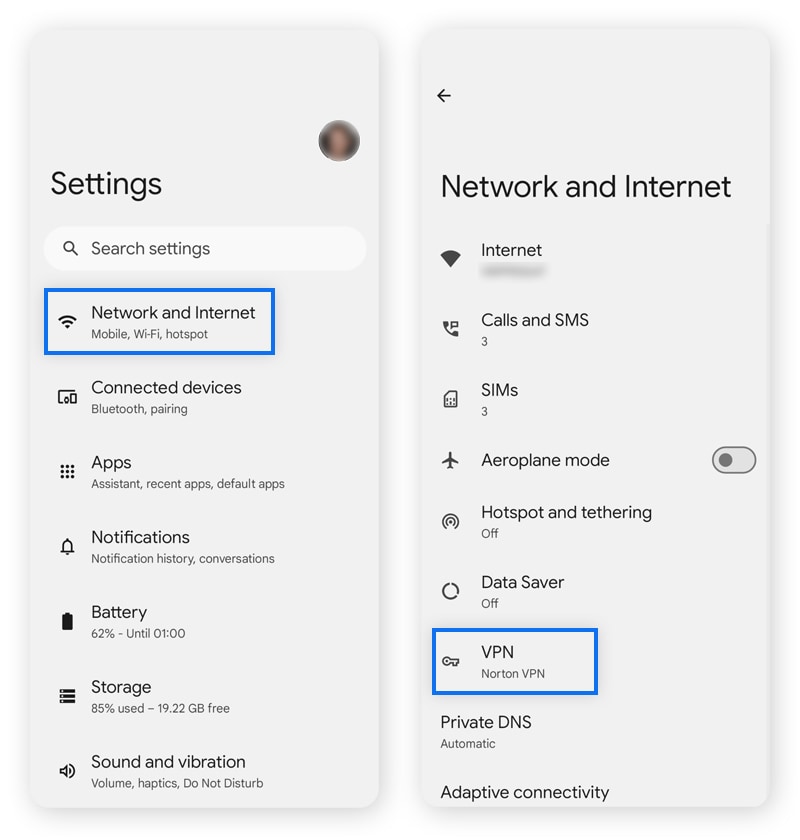
Inside the Settings app, scroll down to find the Network & Internet section. This area manages all your network connections. Tap on it to open more options related to Wi-Fi, mobile data, and VPN.
Find Vpn Option
Within the Network & Internet menu, look for the VPN option. It may be listed under additional settings or advanced sections. Tap on VPN to see all VPN profiles you have set up or connected to on your device.
Use Search Feature
If you cannot find the VPN option manually, use the search bar at the top of the Settings app. Type VPN into the search field. The system will show all related settings. Tap the relevant VPN setting link to go directly to the VPN menu.
Turn Off Vpn Manually
Turning off a VPN manually on your Android device is simple and quick. This method helps you regain normal internet access without the extra steps of uninstalling apps or changing settings deeply. It is useful when you want to stop VPN protection temporarily.
Follow these clear steps to turn off the VPN manually on your Android phone or tablet. The process works on most Android versions and common VPN apps.
Access Active Vpn List
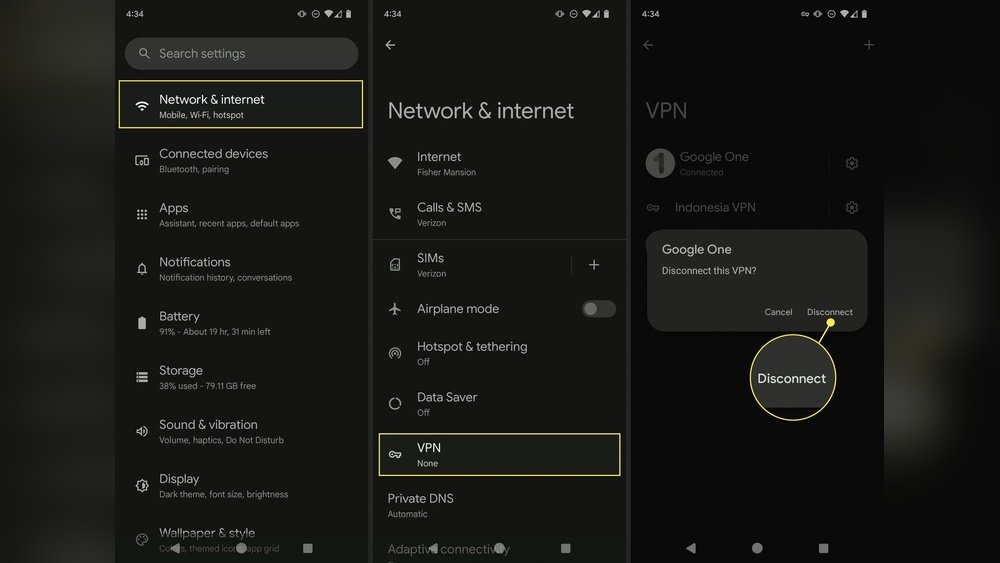
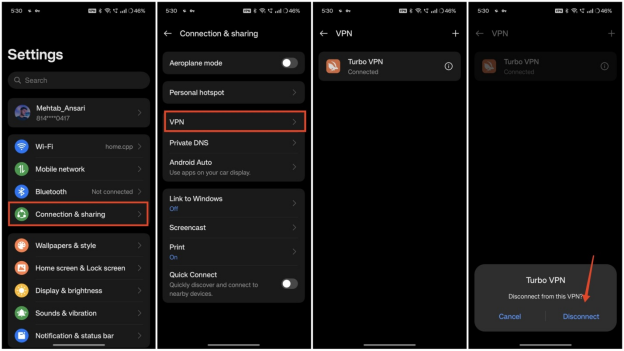
Open the Settings app on your Android device. Scroll down and tap on “Network & internet” or “Connections,” depending on your phone model. Find the “VPN” option and tap it. This section shows all active and saved VPN connections.
Select Connected Vpn
In the VPN list, look for the VPN marked as “Connected” or “Active.” Tap on the connected VPN to open its details. This screen shows the status and options for your current VPN connection.
Disable Vpn Connection
Tap the “Disconnect” or “Turn off” button to disable the VPN. The status should change to “Disconnected” or disappear from the active list. Your internet will now use the regular network without VPN protection.
Disable Vpn Via Quick Settings
Disabling your VPN quickly on Android is simple using the Quick Settings panel. This method lets you turn off the VPN without digging through menus. It saves time and makes managing your connection easier.
The Quick Settings area shows important toggles, including the VPN switch. You can access it with just a swipe. This section guides you step-by-step to disable the VPN fast.
Open Notification Shade
Swipe down from the top of your screen. This action opens the Notification Shade. It shows notifications and quick access buttons. Swipe down again if needed to see all Quick Settings icons.
Find Vpn Toggle
Look for the VPN icon among the Quick Settings. It usually looks like a key or shield. If you don’t see it, swipe left or right to find more icons. Sometimes, you may need to edit Quick Settings to add the VPN toggle.
Switch Off Vpn
Tap the VPN icon to disable it. The icon will no longer be highlighted. This means your VPN connection is off. Your internet traffic will now go through your normal network.
Stop Vpn In Third-party Apps
Stopping a VPN in third-party apps on your Android device is simple. Many VPN services use their own apps for connection management. Turning off the VPN in these apps stops all encrypted traffic and restores your normal internet access.
Follow clear steps to ensure the VPN disconnects properly. This prevents any hidden or background connections from staying active. Closing the app incorrectly might leave the VPN running without your knowledge.
Open Vpn App
Locate the VPN app on your Android device. Tap the app icon to open it. Most VPN apps show your connection status on the main screen. This is where you can control the VPN connection.
Disconnect From Server
Find the disconnect button inside the app. It usually says “Disconnect” or “Stop.” Tap this button to end the VPN session. The app will confirm that you are no longer connected to the VPN server.
Close App Properly
After disconnecting, close the VPN app fully. Use the Android recent apps menu to swipe it away. This step ensures the app does not run in the background. Proper closure helps save battery and avoid accidental reconnection.
Reasons To Turn Off Vpn
Turning off a VPN on your Android device can be necessary for several practical reasons. While VPNs offer privacy and security, they sometimes cause issues that affect your device’s performance and access to services. Knowing when to disable your VPN helps you get the most from your internet connection and apps.
Here are some common reasons to turn off your VPN on Android.
Improve Internet Speed
VPNs route your internet traffic through remote servers. This process can slow down your connection. Disabling the VPN removes this extra step. Your data flows directly to and from your device. This often results in faster browsing, streaming, and downloads.
Access Local Content
Some websites and apps block VPN traffic to protect local services. For example, banks and streaming platforms may detect VPN use and restrict access. Turning off your VPN lets you use these services without interruptions. You see local prices, offers, and content tailored to your region.
Troubleshoot Connectivity
Network problems can sometimes be caused by your VPN. If your internet is slow or websites won’t load, turning off the VPN helps. This step checks if the VPN causes the issue. It’s an easy way to fix connection troubles on your Android phone.
Save Battery Life
VPN apps run in the background and use extra power. This can drain your phone’s battery faster. Disabling the VPN reduces battery consumption. Your device runs more efficiently, especially during long periods without charging.
Comply With Local Laws
Some countries restrict or ban VPN use. Keeping a VPN active in these areas may cause legal issues. Turning off your VPN ensures you follow local regulations. This avoids potential fines or service interruptions while using your Android device.
When To Keep Vpn On
Knowing when to keep your VPN on is important for safe and smooth internet use on Android. VPNs create a secure tunnel for your data. This keeps your information safe from outsiders. Here are key moments to keep your VPN active for protection and access.
Using Public Wi-fi
Public Wi-Fi networks are often not secure. Hackers can easily steal your data there. Keeping your VPN on encrypts your connection. This stops others from seeing your passwords or messages. Use VPN whenever you connect to public Wi-Fi spots like cafes or airports.
Protecting Privacy
VPNs hide your real IP address and location. This helps keep your browsing private. It prevents websites and advertisers from tracking your online habits. Keep your VPN on when you want to protect your identity and personal data from being collected.
Accessing Geo-restricted Content
Some websites and apps limit content based on location. VPNs let you connect through servers in other countries. This gives you access to shows, news, or apps not available in your area. Keep your VPN on to reach geo-blocked content without restrictions.
Check Vpn Status
Checking the VPN status on your Android device is a key step before turning it off. It helps you confirm whether the VPN is active or not. This ensures you do not disconnect something that is already off or miss turning off an active connection. Here are simple ways to check your VPN status quickly.
Verify Active Connection
Go to your Android settings. Find the “Network & internet” option. Tap on “VPN.” This screen shows all VPNs configured on your device. Look for a VPN marked as “Connected” or “Active.” If you see this, your VPN is currently on. If no VPN shows as connected, your VPN is off.
Use Network Indicators
Check the top status bar of your Android screen. A small key icon usually appears when a VPN is active. This icon signals that all your internet traffic is routed through the VPN. If you don’t see this key icon, your VPN is likely off. This is a quick visual way to check your VPN status without opening settings.
Consult It Support
If you use a work or school VPN, ask your IT support team for help. They can tell you if your VPN is active or required for your connection. IT support can also guide you on when and how to safely disable the VPN. This is useful if you are unsure about your network setup or policies.
Troubleshoot Vpn Issues
VPNs help protect your privacy and access content safely. Sometimes, VPNs cause connection problems or slow down your device. Troubleshooting VPN issues can restore normal internet use and fix errors. Follow these simple steps to solve common VPN problems on Android.
Restart Device
Restarting your Android device clears temporary glitches. It refreshes system settings and network connections. Hold the power button and select restart. After rebooting, check if the VPN works correctly or turns off as needed.
Reset Network Settings
Resetting network settings removes all saved Wi-Fi, mobile data, and VPN configurations. This step fixes conflicts causing VPN issues. Go to Settings > System > Reset options > Reset Wi-Fi, mobile & Bluetooth. Confirm the reset and reconnect your networks. Re-enable or disable VPN after this reset.
Update Vpn App
Outdated VPN apps may cause errors or fail to turn off properly. Open Google Play Store and search for your VPN app. Tap Update if available. Updated apps have bug fixes and improved performance. After updating, test the VPN connection and disable it if needed.
Prevent Vpn From Auto-connecting
Preventing your VPN from auto-connecting on Android helps you control when the VPN is active. This stops the VPN from turning on automatically each time you start your device or connect to a network. Managing this setting saves battery life and avoids slow internet speeds caused by constant VPN use.
Modify Vpn App Settings
Open your VPN app on your Android device. Look for settings or preferences within the app. Find options related to auto-connect or launch on startup. Disable any toggle or checkbox that enables auto-connection. This change stops the app from turning on the VPN automatically. Some VPN apps let you set specific networks where auto-connect works. Remove all networks if you want full control.
Adjust System Preferences
Go to your Android device’s Settings menu. Tap on “Network & internet” or “Connections.” Select “VPN” to see the list of VPN profiles. Tap the gear icon next to your active VPN profile. Check for options like “Always-on VPN” or “Block connections without VPN.” Turn off these options to prevent auto-connection. This stops the VPN from starting without your permission. You can manually connect to the VPN whenever needed after this.
Credit: www.youtube.com
Credit: www.airdroid.com
Frequently Asked Questions
How Do I Know If My Vpn Is On Or Off?
Check your device’s VPN icon or open settings to see VPN status. Active VPN shows connected status or icon; off means no connection.
Why Would You Turn Off Your Vpn?
You turn off your VPN to improve speed, access local content, troubleshoot issues, save battery, bypass blocks, or comply with local laws.
Where Is The Vpn Setting On Android?
Find VPN settings on Android by opening Settings, tapping Network & Internet, then selecting VPN. Manage VPN connections there.
Why Does My Vpn Keep Turning On?
Your VPN may auto-activate due to app settings, startup preferences, or security features. Check your VPN app and device settings to disable this.
Conclusion
Turning off VPN on Android is simple and quick. Open your settings, find the VPN option, and toggle it off. This helps improve speed, access local apps, or fix connection issues. Remember to turn it back on when needed for privacy.
Managing your VPN keeps your device running smoothly and gives you control over your internet use. Now you can enjoy better browsing without confusion.